When trying to streamline business processes, we often discover that the simplest solutions can be the most effective. This is certainly the case when combining SharePoint lists with Power Automate to automate quotation generation.
Here’s a step-by-step guide on how to set this up for your business.
Creating Your SharePoint List
The first step is to create a SharePoint list that will serve as your quotation database. This list will consist of the following columns:
- Title
- QuoteNumber
- Customer
- Status
- Link to Quote
- Notes
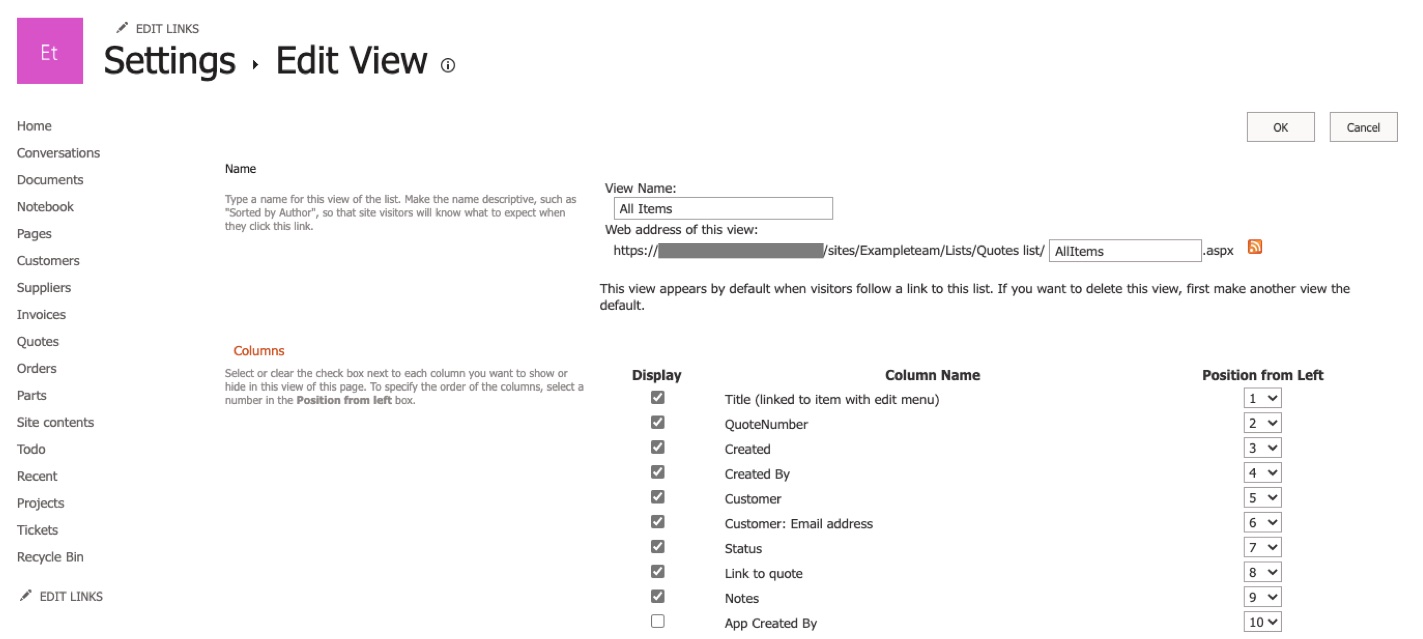
Alongside these, SharePoint automatically adds two default columns, ‘Created’ and ‘Created By’, which provide valuable information about who generated the quote and when. You can make these visible by clicking the ‘Settings’ icon, ‘List settings’, then clicking on the ‘All items’ view.
Automating with Power Automate
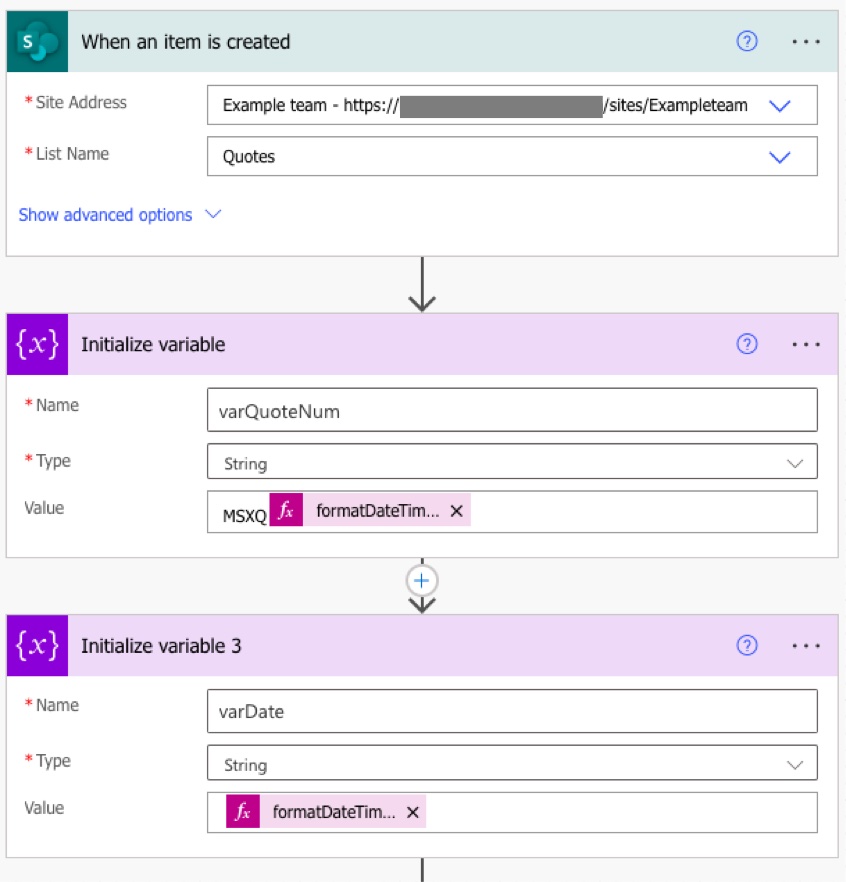
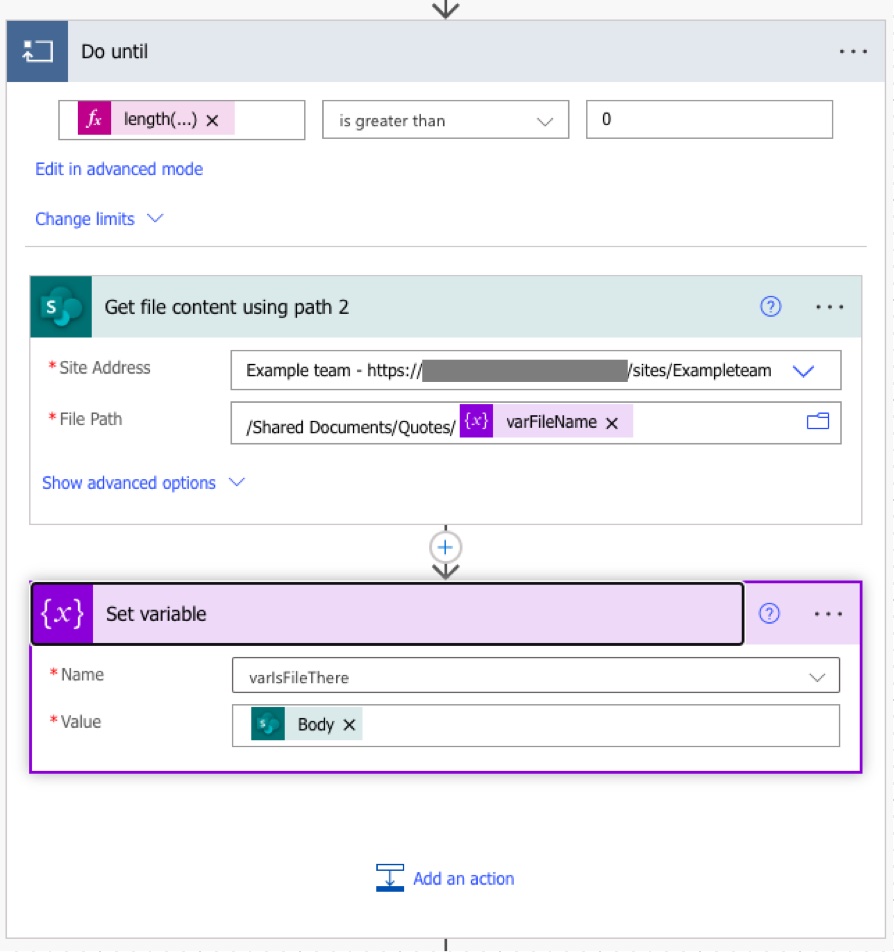
Once your SharePoint list is set up, the next step involves creating a Power Automate flow. This flow will trigger whenever a new item is added to your SharePoint list. Here’s what the flow will do:
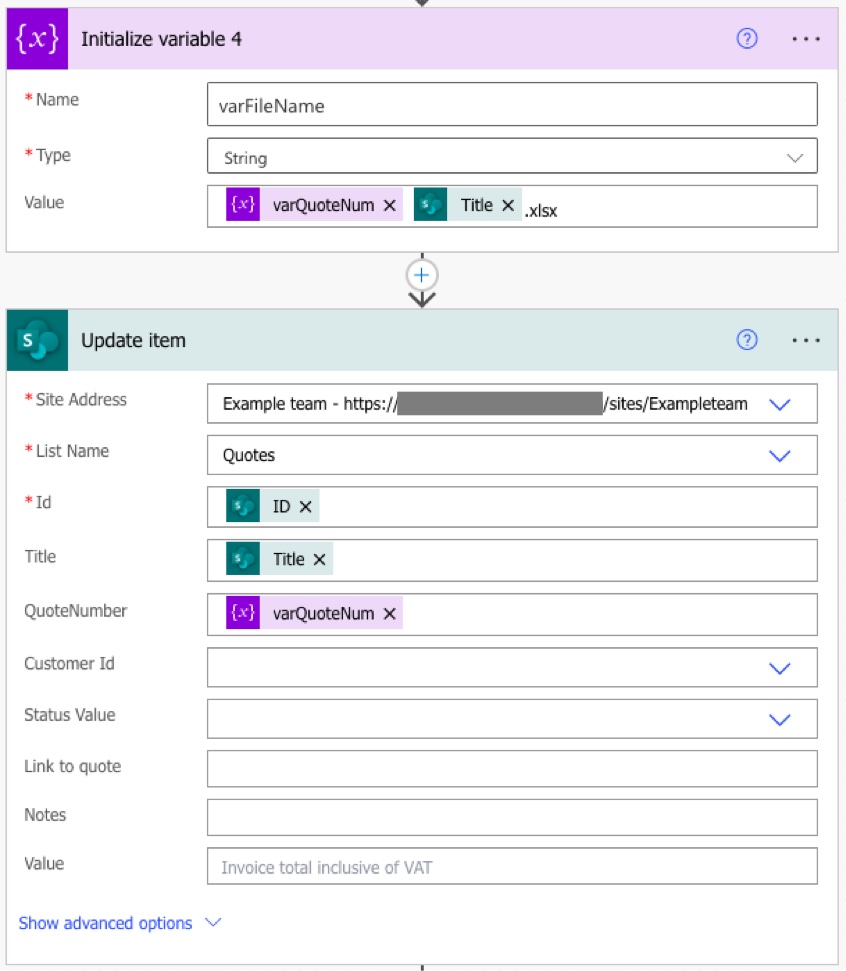
- Creates a new quotation number in the format MSXQyyyyMMddhhmmss
- Creates a file name based upon the quote number and quotation title.
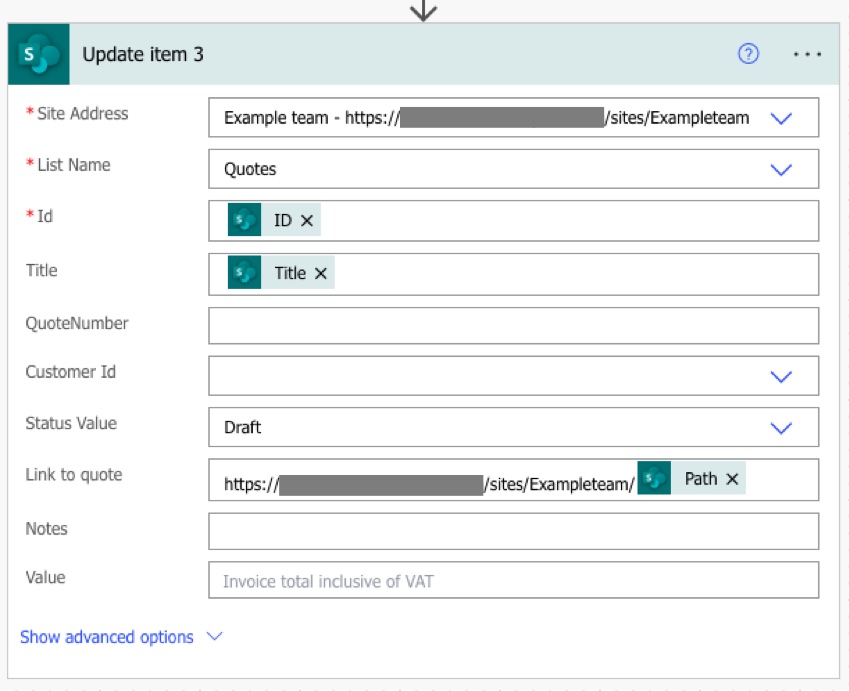
- Updates the Quotes SharePoint list.
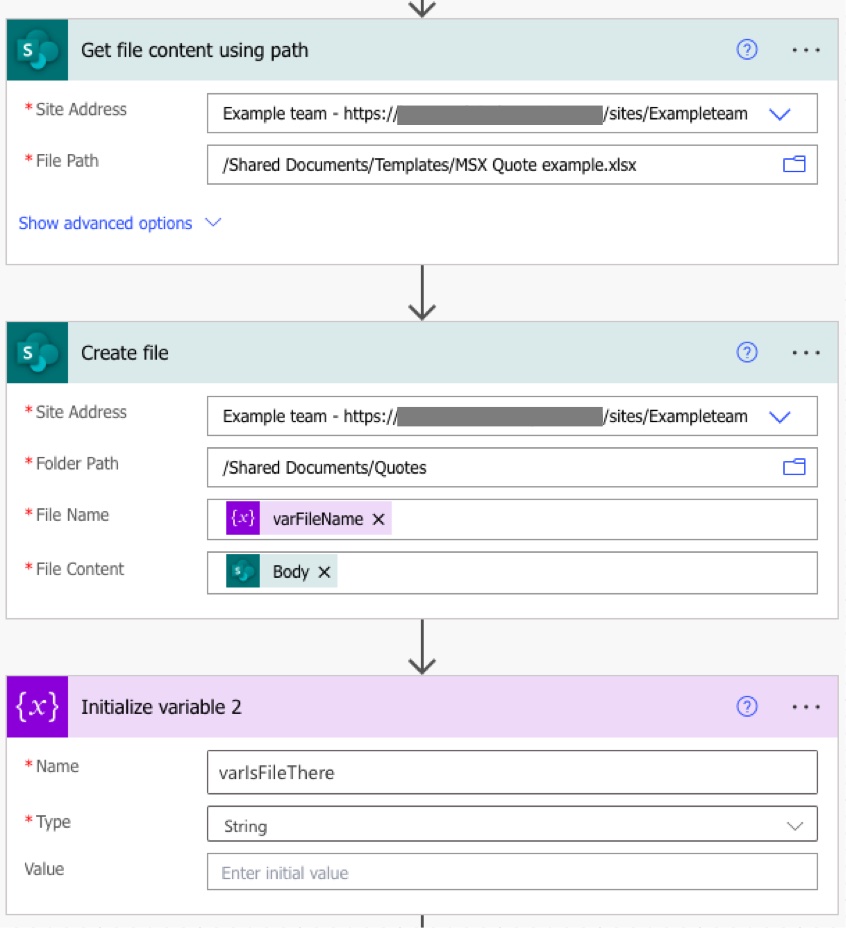
- An Excel quotation template is copied from a predetermined location.
- The template is placed into a the ‘Quotes’ folder.
- The ‘Link to Quote’ field in the SharePoint list is then updated with a hyperlink to the new quotation file.
- The ‘Status’ field is updated to ‘Draft’ to indicate the quotation is newly created and yet to be populated with detail.
Power Automate flow
Conclusion
And there you have it! A straightforward yet powerful way of automating quotation generation using SharePoint lists and Power Automate. This approach not only reduces manual labour but also minimises errors and ensures a consistent process across your organisation.
Got a question?
Whats next?
In the next post I’ll explain how to automatically send your quote to your customers and manage revisions to your quotations.
Subscribe to the newsletter for automated updates!
 Mike Harrison
Leave a comment