Diving into the digital toolshed, we often overlook the simplest solutions, like using Power Automate’s Rest HTTP connector with SOAP APIs. This straightforward approach remains surprisingly hidden. It might not be flashy, but it gets you exactly where you need to go, efficiently and reliably.
For this example I’m going to use the NumbersToWords SOAP API available here
OK, so jump into Power Automate, and create a new flow with a Manual Trigger.
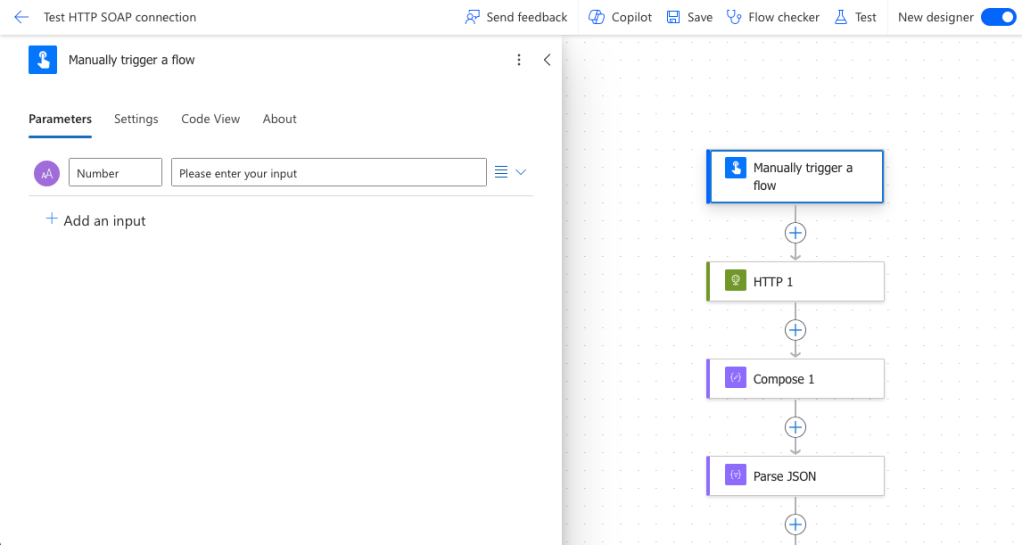
We’ll add an input called ‘Number’.
Next add an HTTP connector.
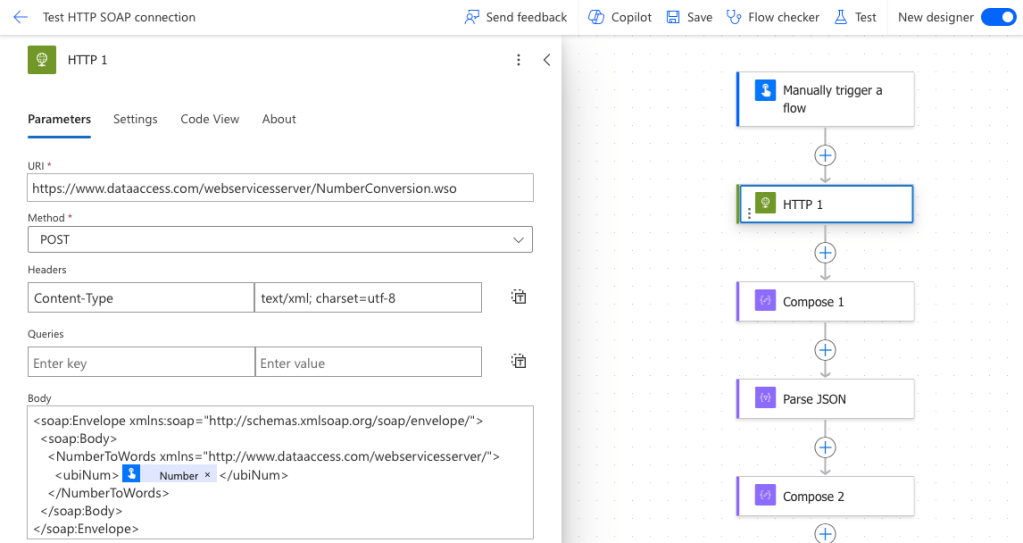
Set the URI to the SOAP API, in this example it will be: https://www.dataaccess.com/webservicesserver/NumberConversion.wso
Set the Method to POST (SOAP API’s primarily use the POST method regardless of the action being taken).
For the Header, you will need ‘Content-Type’ with value ‘text/xml; charset=utf-8’
In the Body it’s essential that you define the SOAP Envelope in XML, you’ll typically find this in the API documentation. In this example it will be:
<soap:Envelope xmlns:soap="http://schemas.xmlsoap.org/soap/envelope/">
  <soap:Body>
    <NumberToWords xmlns="http://www.dataaccess.com/webservicesserver/">
      <ubiNum>unsignedLong</ubiNum>
    </NumberToWords>
  </soap:Body>
</soap:Envelope>
You can replace ‘unsignedLong’ with the the ‘Number’ value from your Manual Trigger.
Next you will want to add a Compose action.
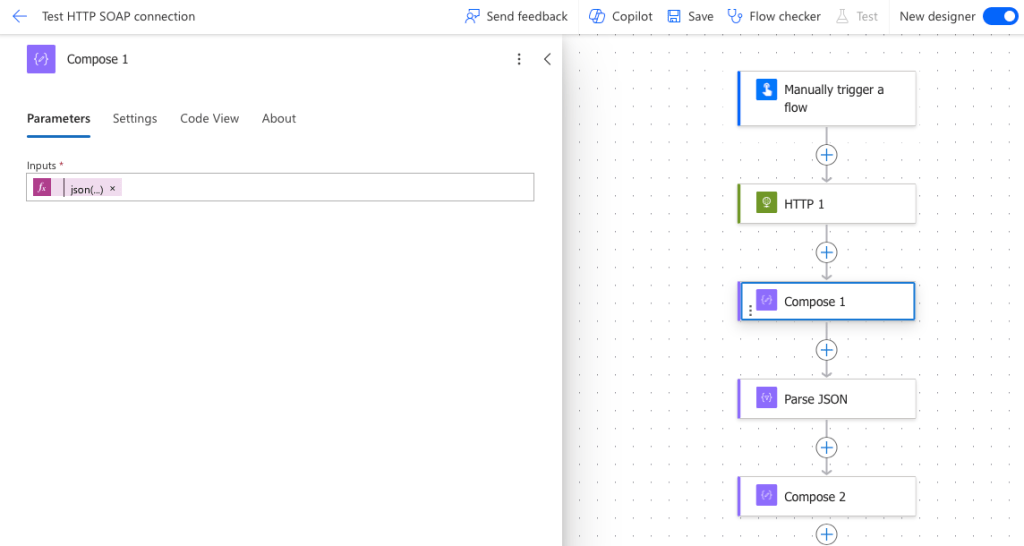
We’re going to covert the XML response from the SOAP API into JSON, so add the following expression:
json(xml(body('HTTP_1')))In order to add the Parse JSON action, you’ll want to run your flow and copy the JSON response in the Compose 1 action, to use as a sample payload for your schema.
Set the Content to the Output from Compose 1:
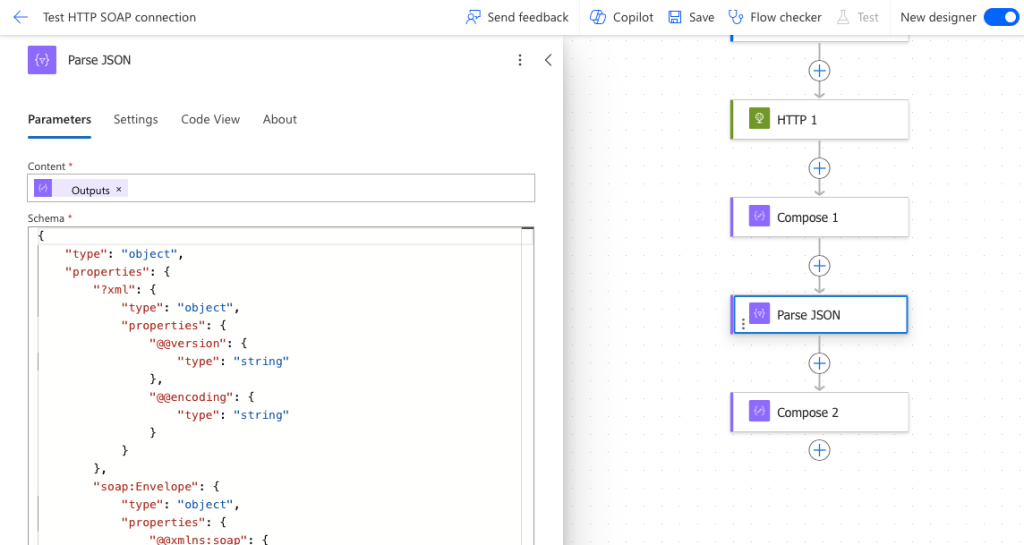
Click on ‘Use sample payload to generate schema’. And paste in the JSON response that you copied, here it is below.
{
  "?xml": {
    "@version": "1.0",
    "@encoding": "utf-8"
  },
  "soap:Envelope": {
    "@xmlns:soap": "http://schemas.xmlsoap.org/soap/envelope/",
    "soap:Body": {
      "m:NumberToWordsResponse": {
        "@xmlns:m": "http://www.dataaccess.com/webservicesserver/",
        "m:NumberToWordsResult": "one hundred and twenty three "
      }
    }
  }
}
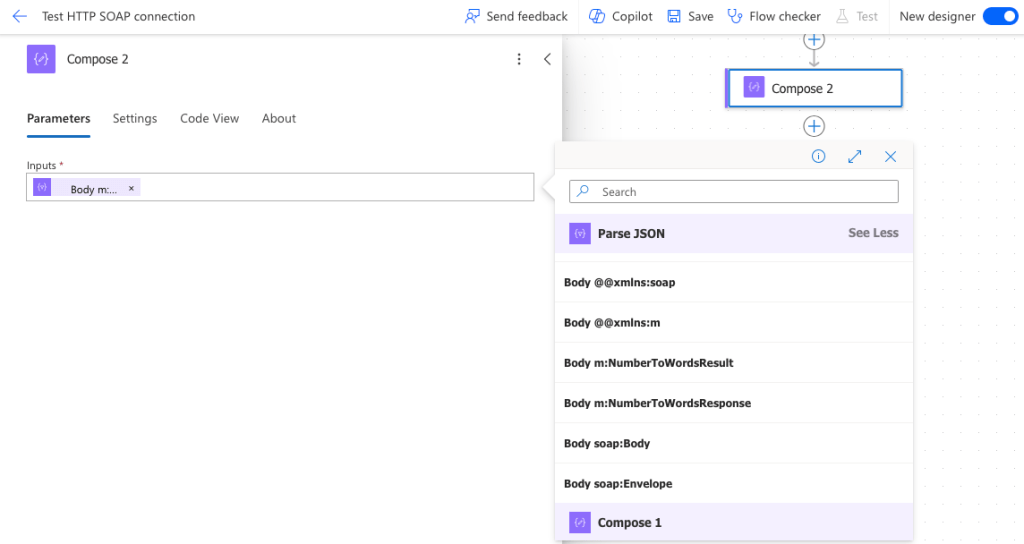
Now add another Compose action, and set the Input to the ‘NumberToWordsResult’ from Parse JSON:
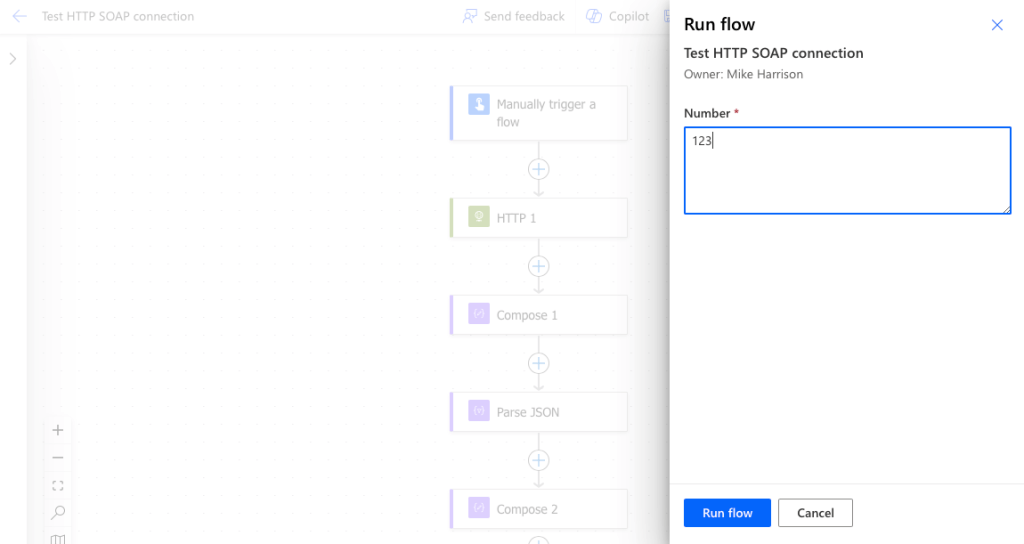
Run the flow…
Add the number you’d like to convert to words:
The Output in the Compose2 action is the response from the SOAP API:
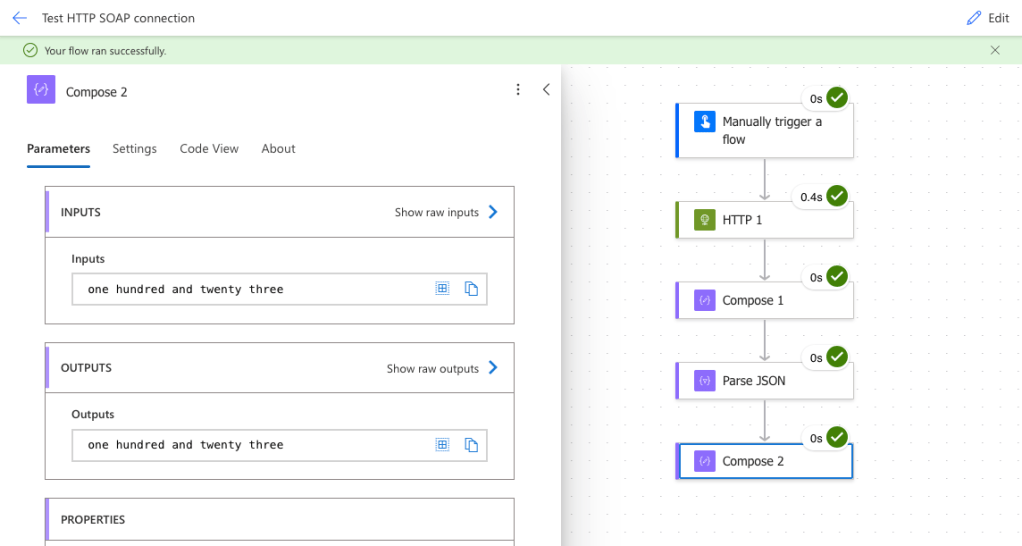
Simple eh… No Postman, no Power Automate Desktop SOAP connector, just a straightforward Rest HTTP connector, configured to talk SOAP.
Found this helpful? Follow me on LinkedIn.


 Mike Harrison
Leave a comment